LightXtreme VPN Download Center
 30-Day Money-Back Guarantee
Get LightXtreme VPN for macOS
You will need macOS 12 or newer, and it runs on every Mac model.
Across 70+ countries there are 2,000+ servers, which places it among the strongest VPNs in use today.
Regional limits no longer stand in the way, and any site or platform opens for you.
Your data is never capped and never slowed, so the connection keeps its speed and its calm.
Your true address is covered over, and you browse anonymously as a result.
Serious encryption runs throughout, and that is what protects your privacy.
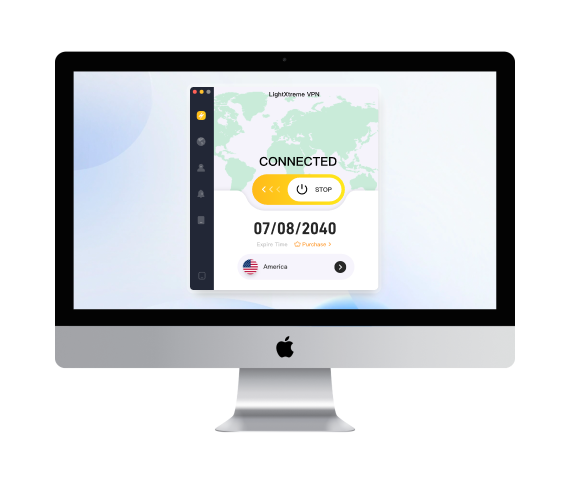


Set up and start using LightXtreme VPN on macOS - in three steps
Get and set up
Use the Free Download button and the LightXtreme VPN client downloads and installs itself.

Subscribe and sign up
Choose a plan and subscribe, and a random numeric account arrives for you to give a password.
Log in and connect
Open LightXtreme VPN, sign in, pick a server, tap to connect and begin to browse.
Questions about the macOS version

Take a client such as LightXtreme VPN, choose a plan, download it from the official site and work through the steps.

Shadowsocks, Vless and WireGuard, along with algorithms such as AES-256-GCM, keep the traffic protected.
Should macOS warn that the developer is unverified, open Apple > System Settings > Privacy & Security and allow it.
Get LightXtreme VPN for iOS
iOS 15 and any later version is the baseline it expects.
Whether iPhone or iPad, the app fits every model Apple makes.
Those 2,000+ servers reach across 70+ countries in total.
Once regional restrictions are out of the way, information from everywhere comes within reach.
Connections are quick, steady and encrypted, and your bandwidth is never limited.
Your address is hidden and your traffic encrypted, so privacy and security both hold.
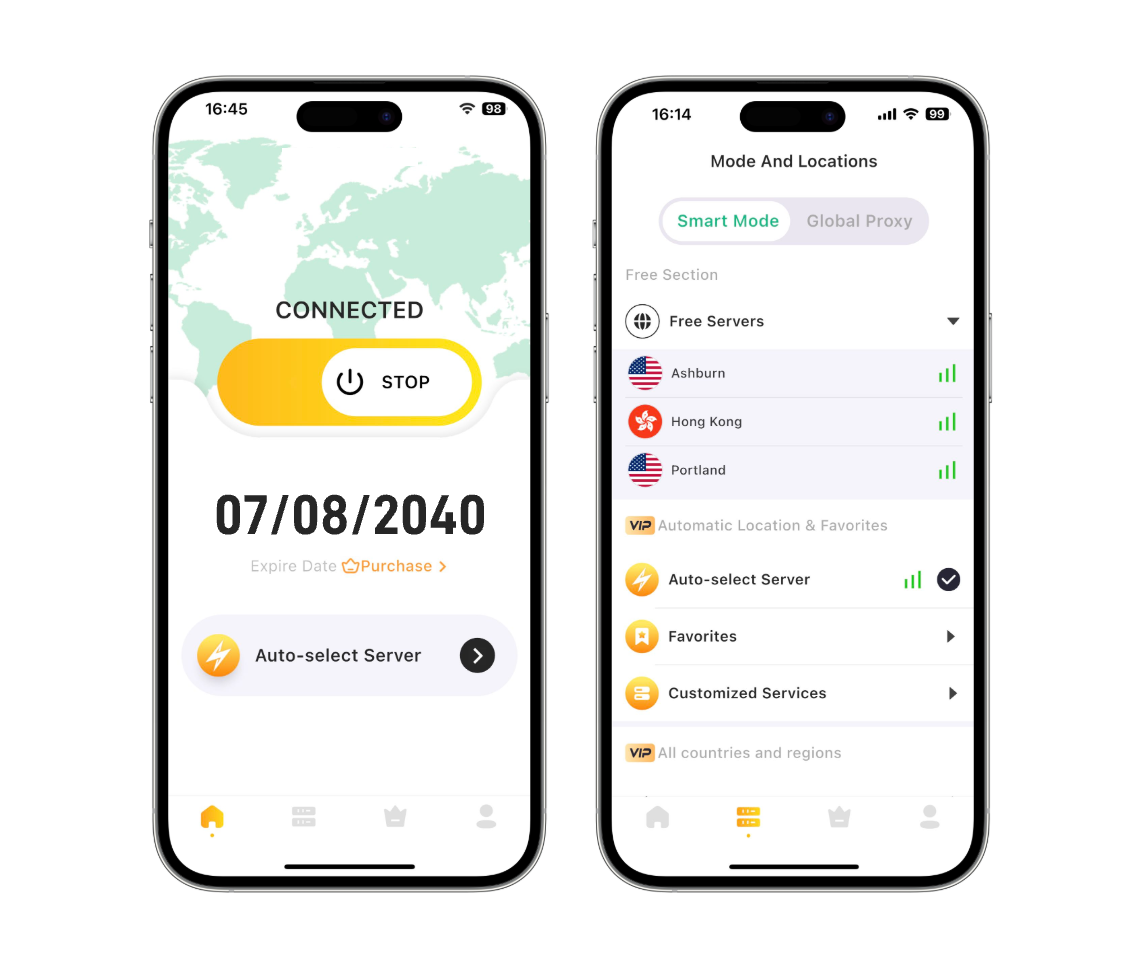
Set up and start using LightXtreme VPN on iOS - in three steps
Get and set up
Tap Free Download, or find LightXtreme VPN in the App Store and install it from there.
Subscribe and sign up
Installing the app hands you a free trial account, and a subscription is the natural next step.
Log in and connect
Open LightXtreme VPN, sign in, tap Start to connect, or move to any other server you prefer.
Questions about the iOS version
In certain areas LightXtreme VPN may be missing from the App Store because of local restrictions.
A VPN conceals your IP address and encrypts what you send, and that combination is what keeps you private online.
LightXtreme VPN arrives with a free trial, and a paid plan afterwards opens every server and unlimited bandwidth.
Get LightXtreme VPN for Windows
It was written for Windows 11 and for Windows 10.
70+ countries are covered by 2,000+ servers in total.
Once the geographic limits are gone, material from around the world is simply there to reach.
Connections arrive quickly and stay dependable, and your bandwidth is never rationed.
YouTube, TikTok, Instagram, Netflix and any other site or platform can be brought up.
Your address is kept out of view and your data is encrypted, so your privacy is looked after.
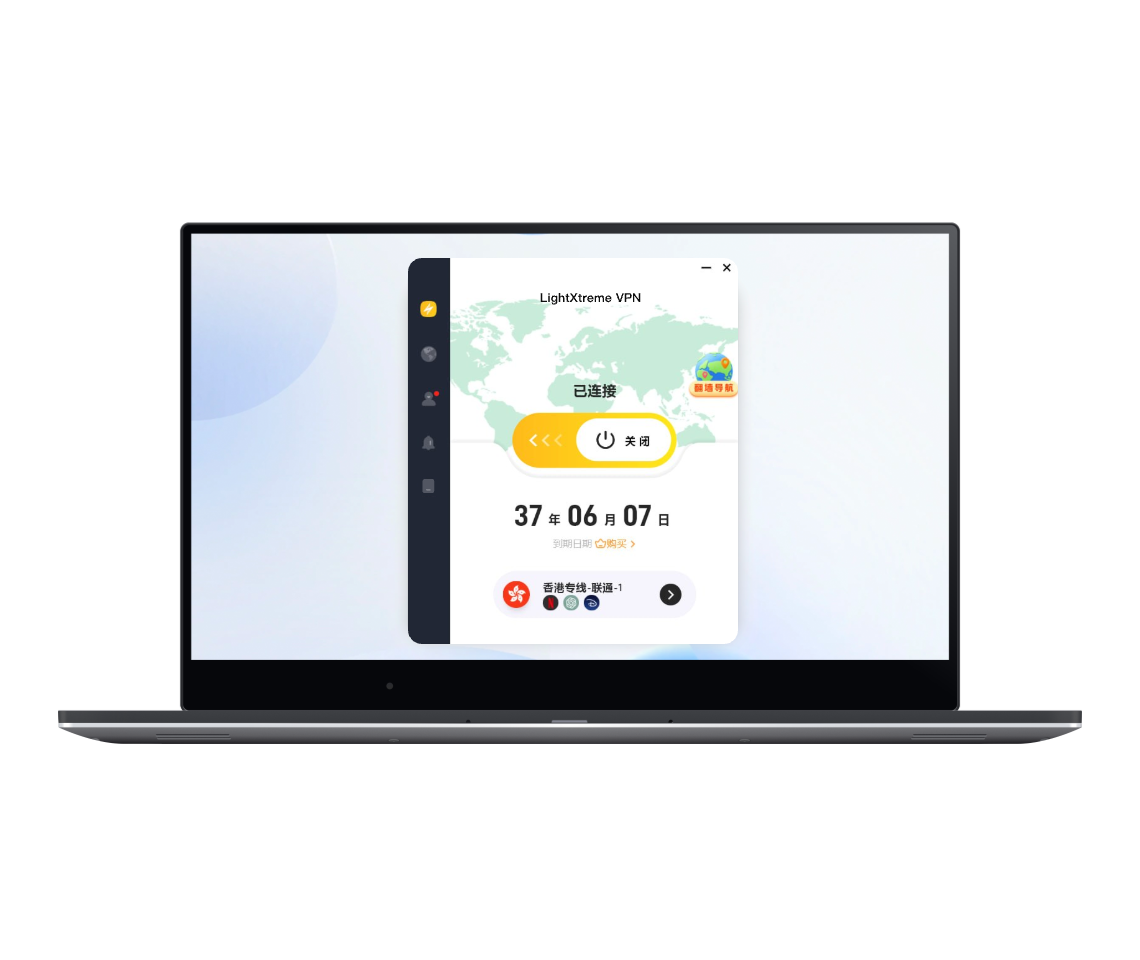
Set up and start using LightXtreme VPN on Windows - in three steps
Get and set up
Press the Free Download button and the LightXtreme VPN client is downloaded and installed on the computer.
Subscribe and sign up
Choose a plan, subscribe, and a random numeric account is handed over for you to give a password.
Log in and connect
Open LightXtreme VPN, sign in, pick a server, tap to connect and the browsing begins.
Questions about the Windows version
Bring the LightXtreme VPN website up in your browser, tap Free Download and the client comes down.
Look at the network connection first and confirm that it is quick and steady.
Check the numeric account and password once more, and confirm the subscription has not run out.
It does, yes. A single LightXtreme VPN account allows 3 devices online at the same time.
Get LightXtreme VPN for Android
Android 5.0 is where it begins, and everything newer works too.
2,000+ servers around the world, and no cap on the bandwidth you use.
Regional limits are broken and any site or platform can be reached.
The connections are quick, steady and protected.
Advanced encryption guards your data, your privacy and your security.
Your IP address goes unseen, so you remain anonymous.
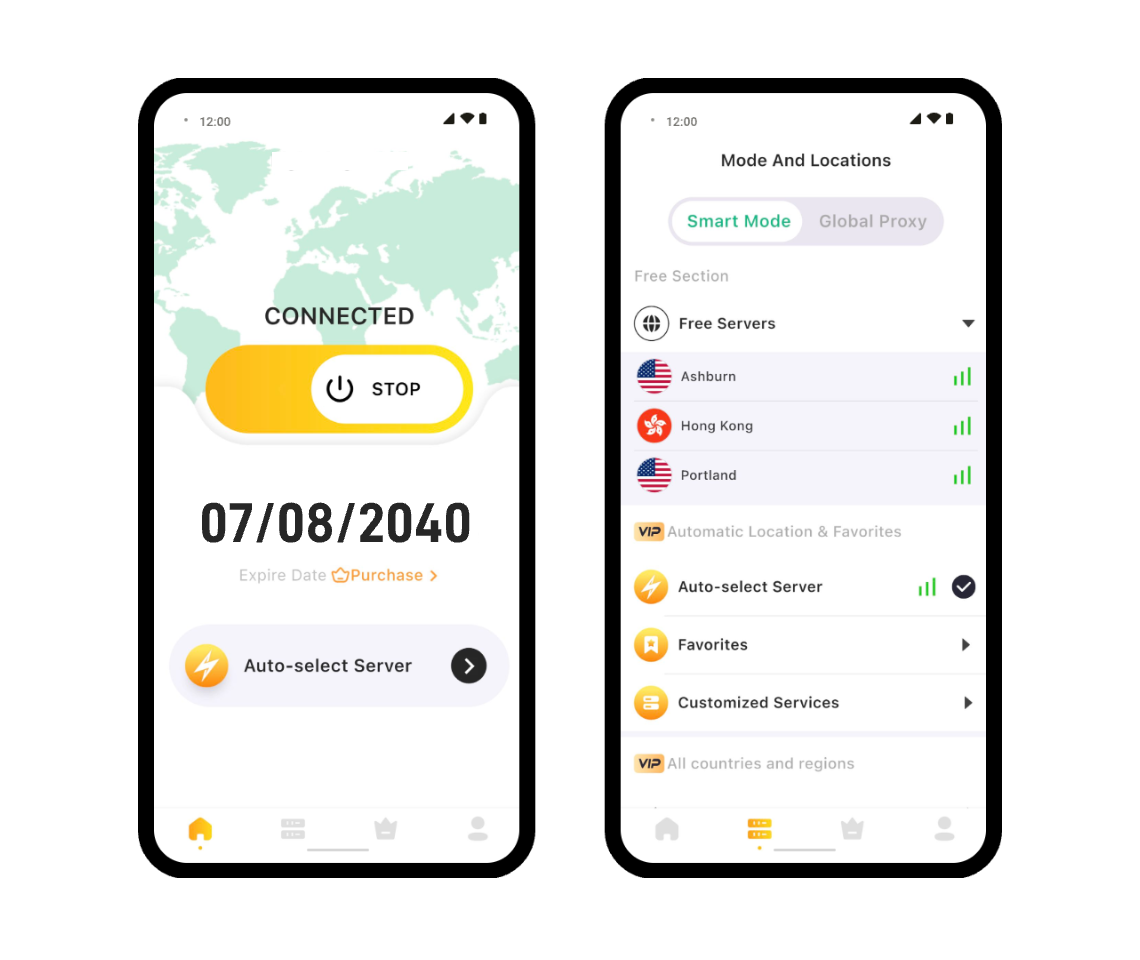
Set up and start using LightXtreme VPN on Android - in three steps
Get and set up
Press Free Download and the client is downloaded and installed on your Android device.
Subscribe and sign up
Installing the LightXtreme VPN Android app gives you a free trial account, and a plan can follow.
Log in and connect
Open LightXtreme VPN, sign in with your account and tap through to the server you want.
Questions about the Android version
Choose a dependable provider such as LightXtreme VPN, install it from Google Play and open it.
LightXtreme VPN is not free, though you may try it: the install provides a free account.
Open the app and tap Stop to bring the running session to an end.
Try a different server, confirm the network underneath is stable, update the client and go again.
Get LightXtreme VPN for Apple TV
It is made for tvOS 17 and the releases that follow.
2,000+ servers are positioned in 70+ countries.
Netflix, Hulu, Disney+ and everything else are there for you to watch.
Regional limits are broken and video content from worldwide opens up.
Quick, steady and unlimited on bandwidth, with a single tap to connect.
AES-256-GCM encryption protects your data, your privacy and your security.
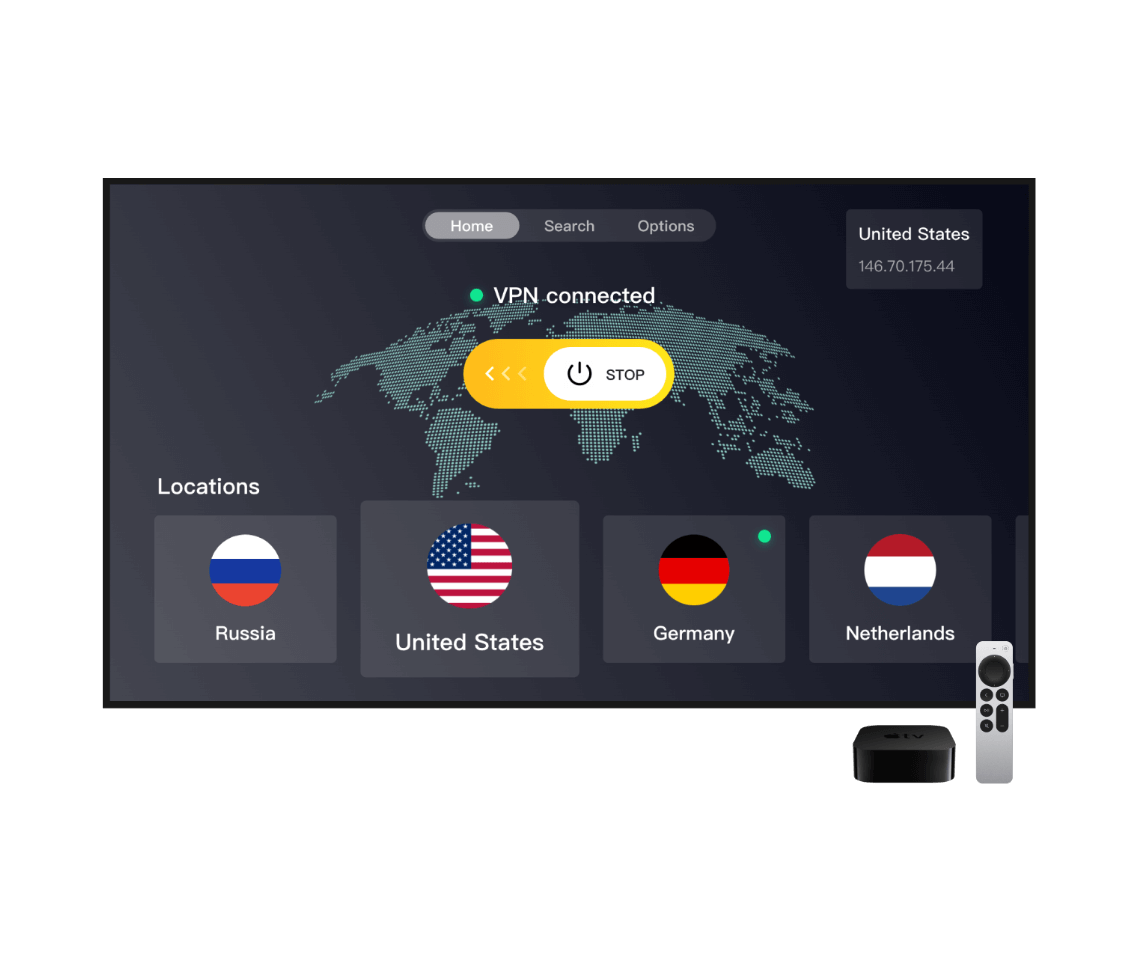
Set up and start using LightXtreme VPN on Apple TV - in three steps
Get and set up
On Apple TV, open the App Store, look for LightXtreme VPN and download and install it.
Subscribe and sign up
Subscribe to the plan, receive your random numeric account and sign in with the account name and password.
Log in and connect
Pick a country and a server, connect, and the films and series you like begin.
Questions about the Apple TV version
Find LightXtreme VPN in the Apple TV App Store and download and install it directly.
Sign in with the account name and password, or scan the QR code from the LightXtreme VPN app.
Apple TVs on tvOS 17 or later can add the native VPN app straight from the App Store.
Get LightXtreme VPN for Android TV
Android 5.0 and up is where it starts.
Netflix, Hulu, Disney+ and the rest are there for you to watch.
Content from 70+ countries becomes available.
2,000+ servers worldwide, quick, steady and unlimited.
Advanced encryption protects your data, your privacy and your security.
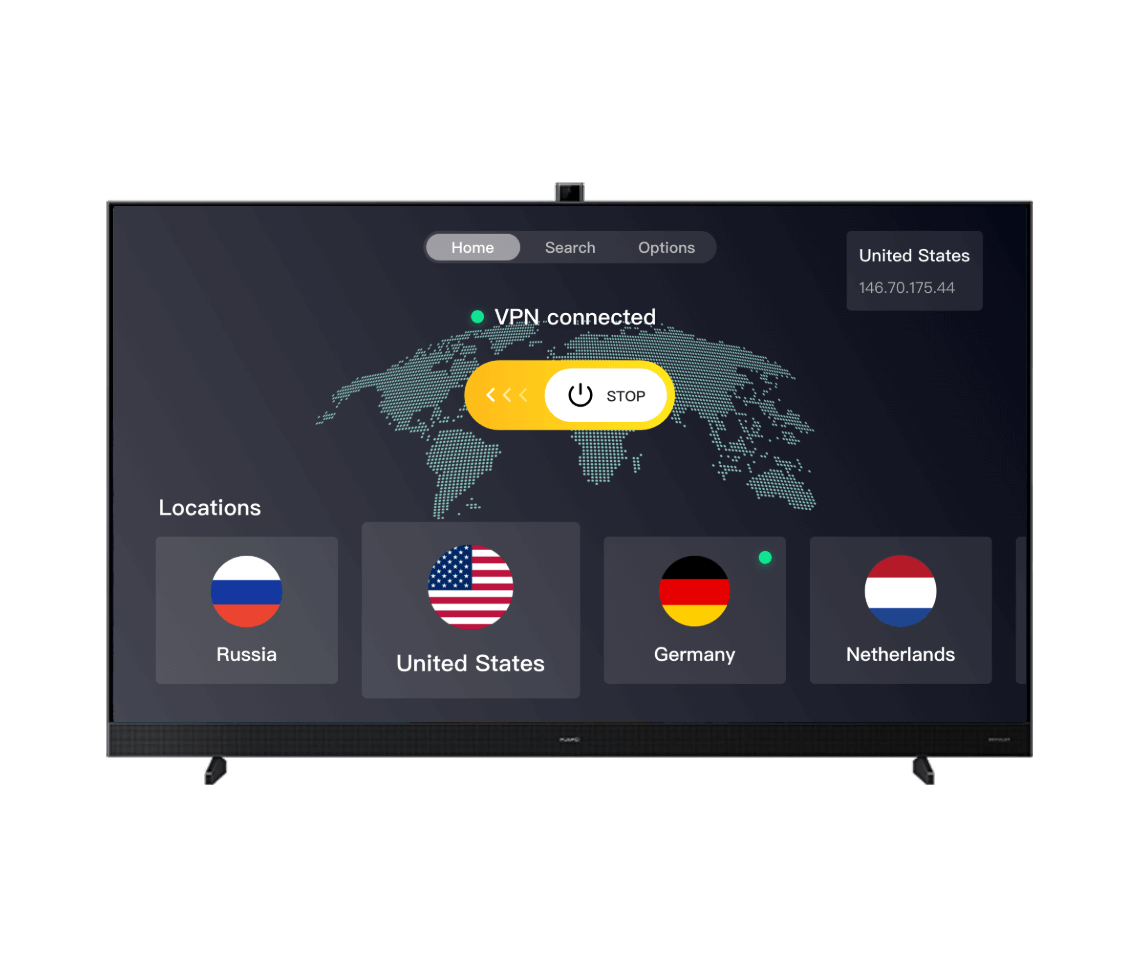
Set up and start using LightXtreme VPN on Android TV - in three steps
Get and set up
Open Google Play on the Android TV, find LightXtreme VPN and download and install it.
Subscribe and sign up
Choose a plan, pay for it, and a random numeric account is issued to sign in with.
Log in and connect
Pick the country and the server, connect, and the content you want begins playing on Android TV.
Questions about the Android TV version
Look for LightXtreme VPN in the Google Play store on Android TV, or take the APK directly.
On Android TV it is quick, protected and dependable, and versions exist for Apple TV, Windows and more.
Sign in with the account name and password, or scan the QR code with the LightXtreme VPN app.
Yes, plenty of VPN providers offer Android TV apps that install straight from Google Play.
Providers that do it properly keep optimised high-velocity servers for streaming, so the impact on speed is small.
Get LightXtreme VPN for Linux
Debian Linux 11 or Ubuntu 20.04 LTS and later, on AMD64 and ARM64 alike.
2,000+ servers are spread over 70+ countries.
Geographic limits are gone, so worldwide content is within reach.
Connections are quick and dependable, and your bandwidth is never capped.
YouTube, TikTok, Instagram, Netflix and any other site or platform can be opened.
Your address is kept out of sight and your data is encrypted, so privacy is protected.
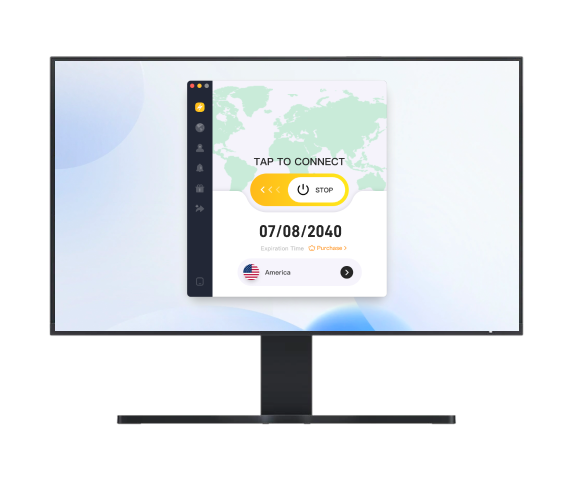
Set up and start using LightXtreme VPN on Linux - in three steps
Get and set up
Press the Free Download button to download and install the LightXtreme VPN client on your Linux device.
Subscribe and sign up
Subscribe to your plan and register a numeric LightXtreme VPN account.
Log in and connect
Open LightXtreme VPN, sign in with the VPN account, tap Start to connect, or tap Mode to change it.
Questions about the Linux version
Where other Linux VPN services ask you to install, sign in and connect from the command line, here it all happens in the interface.
Linux has plenty of VPN tools, and LightXtreme VPN is among the best of them to use.
Get the LightXtreme VPN Chrome extension
Quick, protected browsing with no adverts.
Installing is simple and you can use it straight away.
Strong encryption looks after your privacy and keeps your data safe.
Over 2,000 servers break through regional limits and open any site or platform.
The connection keeps its shape, and that is what makes for a smooth session online.
Your IP address is hidden, protecting both your privacy and your network security.
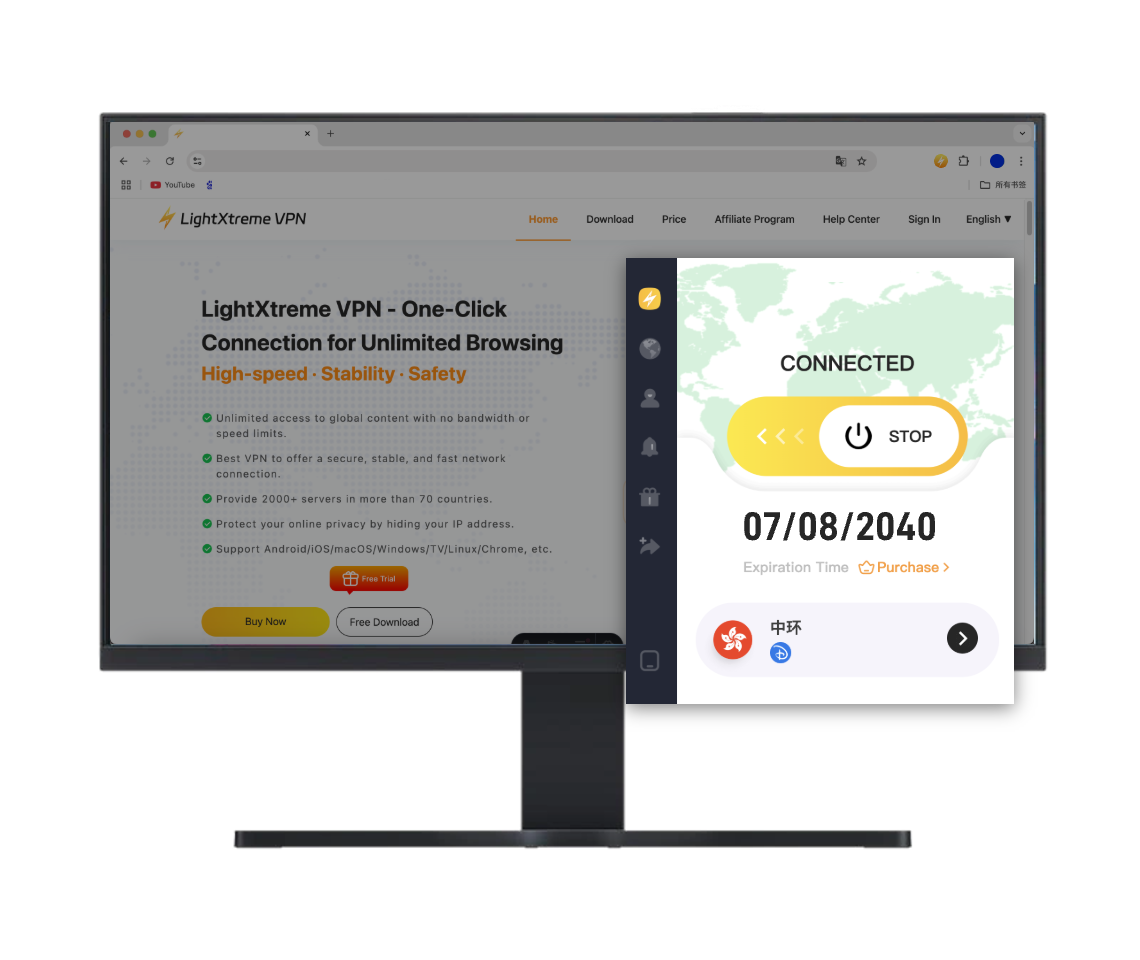
Set up and start using LightXtreme VPN on Chrome - in three steps
Add the Chrome extension
Tap Free Download, or find LightXtreme VPN in the Chrome Web Store and pick it from there.
Subscribe and sign up
Open a LightXtreme VPN account and take the plan that suits you.
Log in and connect
Bring up the LightXtreme VPN Chrome extension, sign in, choose a country and a server and click to connect.
Questions about the Chrome version
Chrome 124 or a later version is what the extension asks for.
Get the LightXtreme VPN Edge extension
On Microsoft Edge you browse quickly, safely and with no adverts.
Over 2,000 servers worldwide are there to unlock any site.
Turning your IP address keeps you anonymous and protects what you do online.
Advanced encryption protocols stand over your data.
Installation is simple and you can use it straight away.
Steady, high-velocity connections make for the best browsing experience.
Set up and start using LightXtreme VPN on Edge - in three steps
Add the Edge extension
Tap Free Download and then confirm the installation.
Subscribe and sign up
Register a LightXtreme VPN account first, and afterwards take the plan that matches how you use it.
Log in and connect
Open the LightXtreme VPN Edge extension, sign in, pick a server and click Connect.
Questions about the Edge version
The extension needs Edge 124 or a more recent build.
Get the LightXtreme VPN Firefox extension
On Firefox, browsing is quick, protected and free of adverts.
Installing is simple and you are ready to go straight away.
Any site or platform is reachable through 2,000+ servers worldwide.
Your IP address stays hidden, so you remain anonymous and your browsing stays private.
Modern encryption technology gives your privacy the strongest cover.
Steady connections at high velocity make for the best experience when browsing.
Set up and start using LightXtreme VPN on Firefox - in three steps
Add the Firefox extension
Tap Free Download, or find LightXtreme VPN in the Firefox Add-ons store and click Add.
Subscribe and sign up
Open a LightXtreme VPN account first, and afterwards take the plan that matches your use.
Log in and connect
Open the LightXtreme VPN Firefox extension, sign in, select a country and a server and click to connect.
Questions about the Firefox version
The LightXtreme VPN extension on Firefox needs Firefox 126 or later.